Get more done with Chrome

Filters:

    Tab groups across iOS, Android and desktop devices
    Tab groups across iOS, Android and desktop devices
    Tab groups across iOS, Android and desktop devices

    personalization

    Get your tab groups on the go
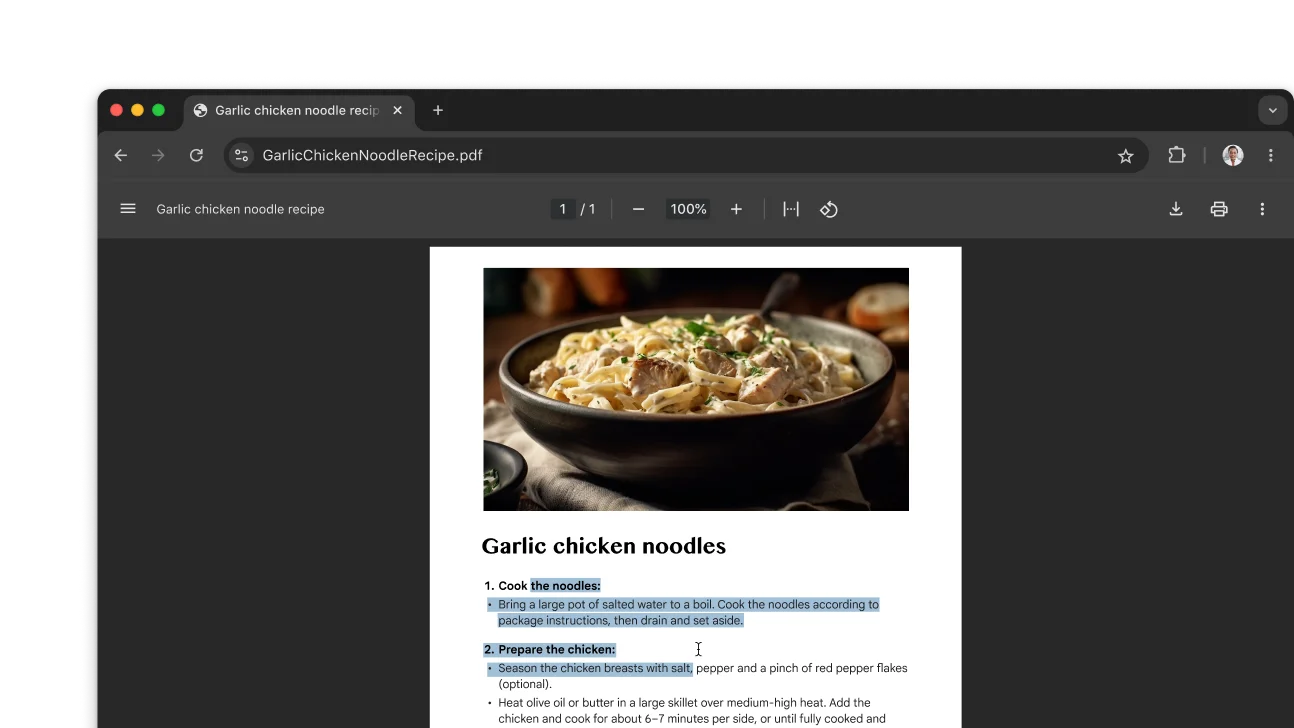
    A PDF featuring a recipe is open in a Chrome browser window. The user has selected text within the PDF.
    A PDF featuring a recipe is open in a Chrome browser window. The user has selected text within the PDF.
    A PDF featuring a recipe is open in a Chrome browser window. The user has selected text within the PDF.

    productivity

    Interact with scanned PDFs

    An image of searching by drawing on Chrome. Next to the image is a QR code that can be used to download Chrome.

    Google Lens On Mobile

    Search what you see on mobile

    A module in Chrome that allows you to share passwords. Next to the module, is a QR code that can be used to download Chrome.

    Share Passwords

    Share passwords on your phone

    A new way to customize your toolbar
    A new way to customize your toolbar
    A new way to customize your toolbar

    Custom Toolbar

    Pin tools for easy access

    Improve your browser performance with one click
    Improve your browser performance with one click
    Improve your browser performance with one click

    performance

    Improve your browser performance with one click

    Turn on manual verification for payments autofill.
    Turn on manual verification for payments autofill.
    Turn on manual verification for payments autofill.

    Autofill Payments

    Pay even faster

    Google Lens on a product page.
    Google Lens on a product page.
    Google Lens on a product page.

    Google Lens

    Search anything on your screen

    Chat with Gemini from the address bar
    Chat with Gemini from the address bar
    Chat with Gemini from the address bar

    Gemini Shortcut

    Chat Gemini from the omnibox

    Pinning a Chrome side panel to the toolbar
    Pinning a Chrome side panel to the toolbar
    Pinning a Chrome side panel to the toolbar

    customize

    Pin your favorite features to the toolbar

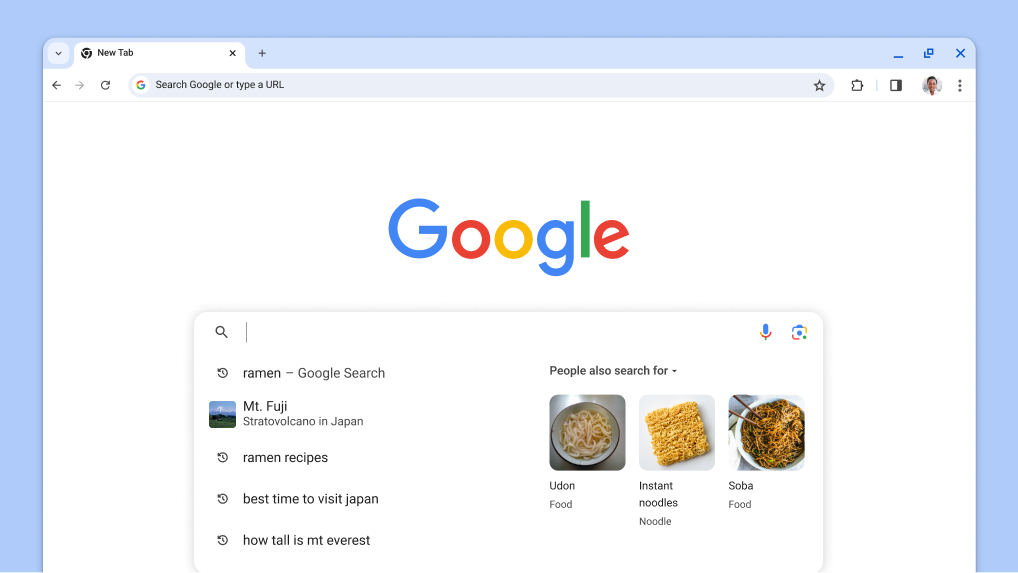
    The cursor is shown in the search box with automatically loaded past searches and related topics.
    The cursor is shown in the search box with automatically loaded past searches and related topics.
    The cursor is shown in the search box with automatically loaded past searches and related topics.

    Search Suggestions

    Get custom search suggestions

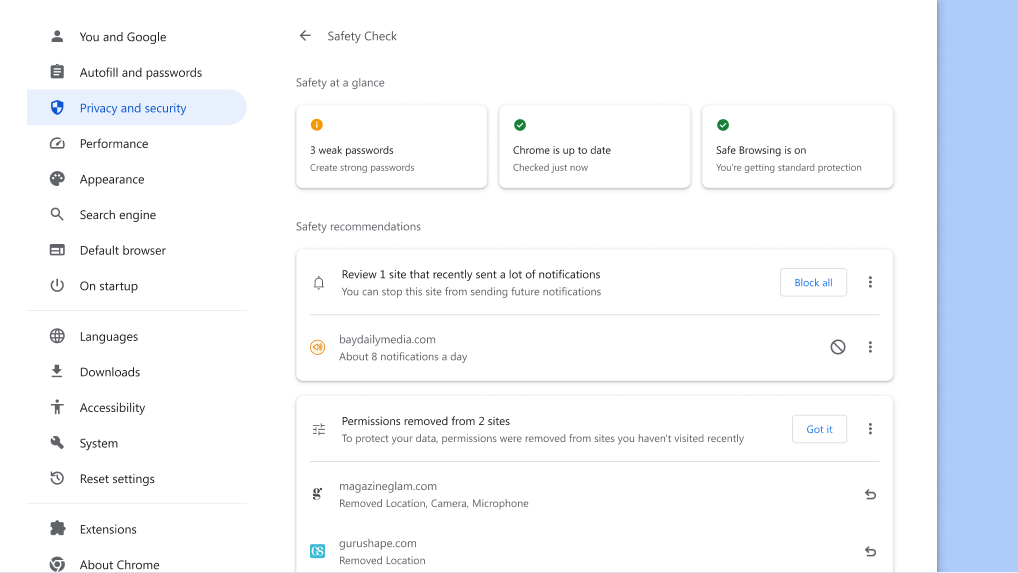
    Chrome Safety Check runs in the background to check for privacy and security issues, then displays your safety status and any relevant recommendations to improve your safety.
    Chrome Safety Check runs in the background to check for privacy and security issues, then displays your safety status and any relevant recommendations to improve your safety.
    Chrome Safety Check runs in the background to check for privacy and security issues, then displays your safety status and any relevant recommendations to improve your safety.

    Safety Check

    Review safety recommendations

    Safety Check

    Review safety recommendations

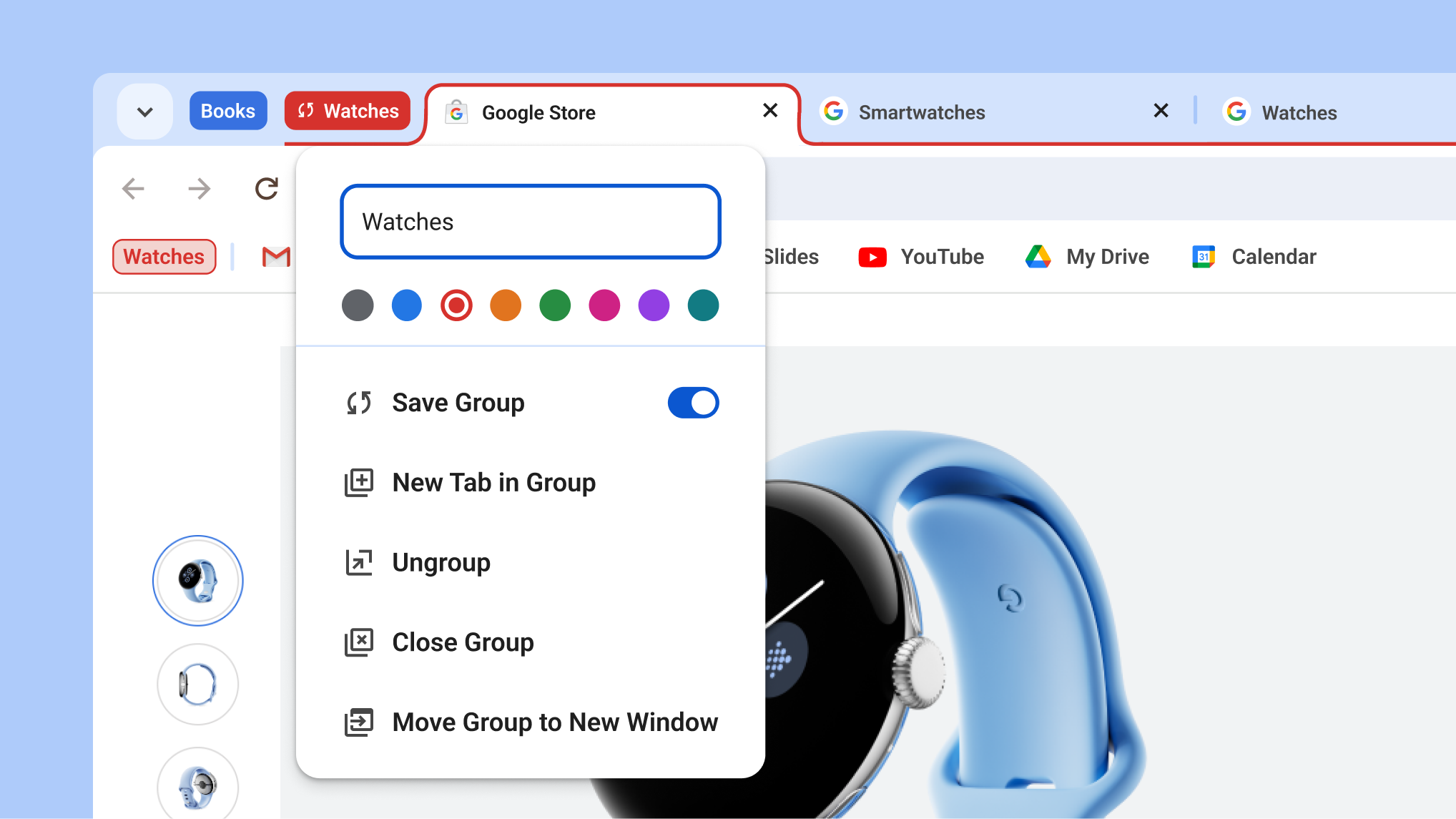
    Tab group menu open showing the new save and hide group options
    Tab group menu open showing the new save and hide group options
    Tab group menu open showing the new save and hide group options

    Save Tab Groups

    Hide tabs until you need them

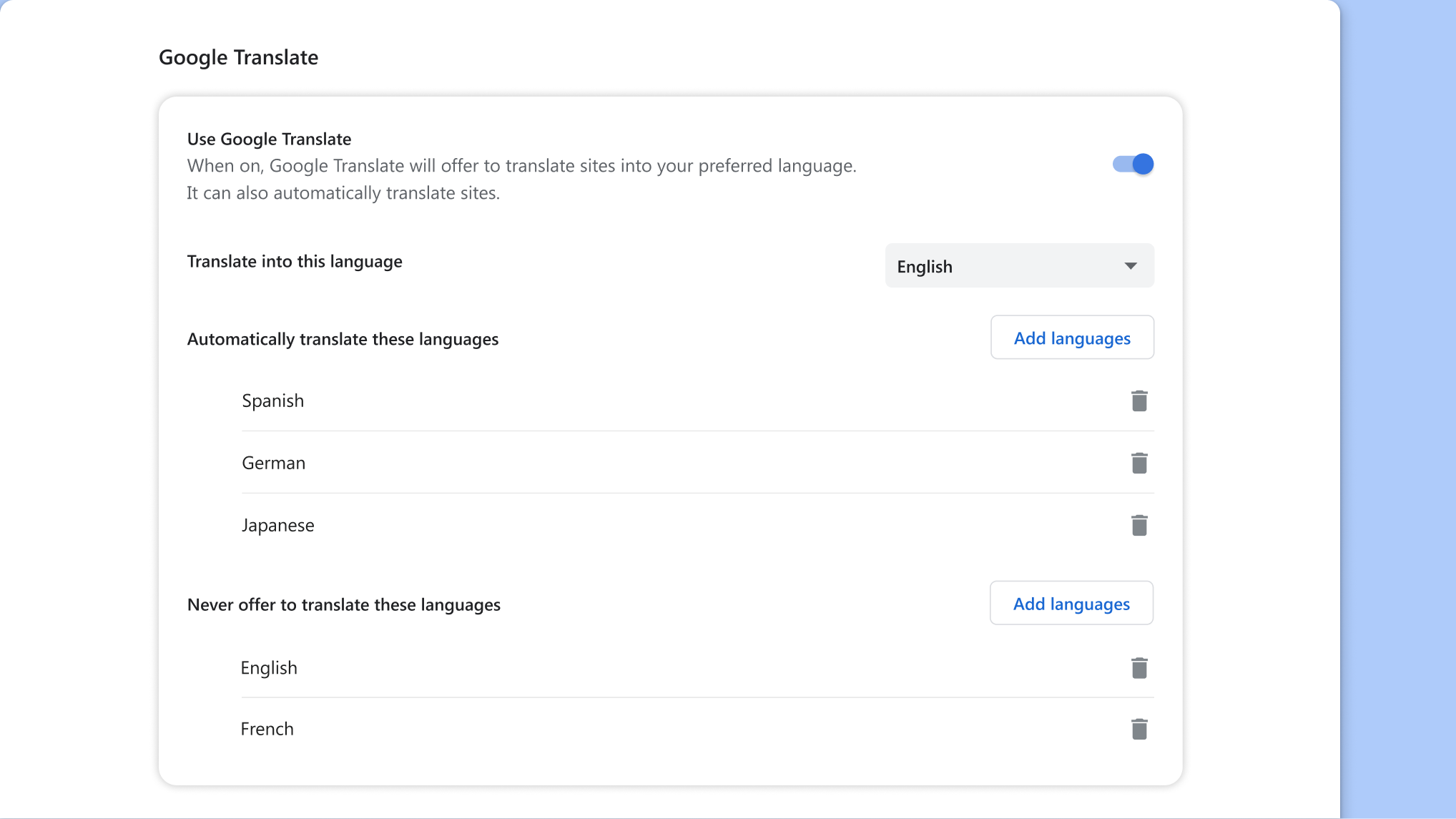
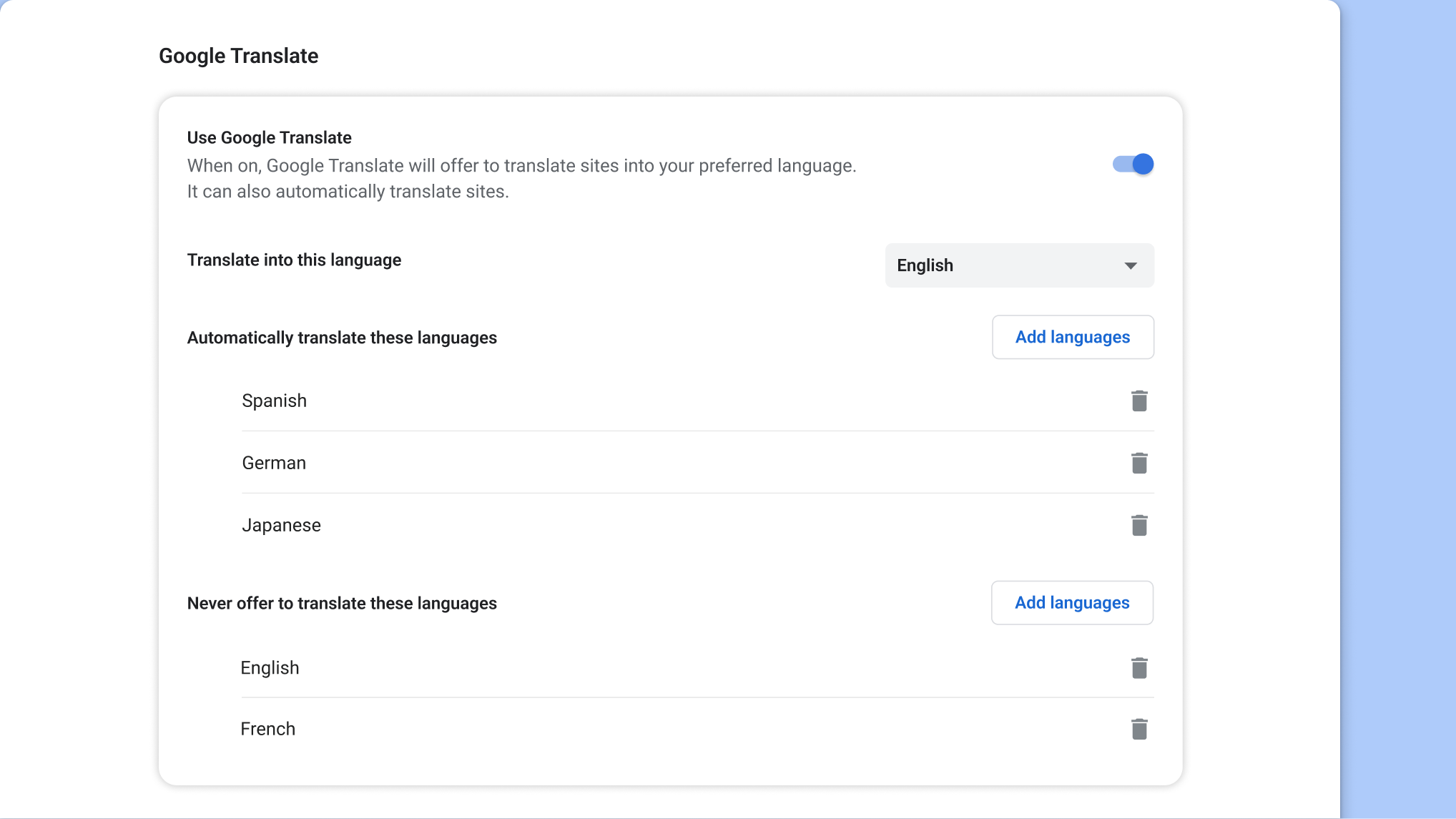
    Google Translate setting page in Chrome
    Google Translate setting page in Chrome
    Google Translate setting page in Chrome

    Google Translate

    Translate pages automatically

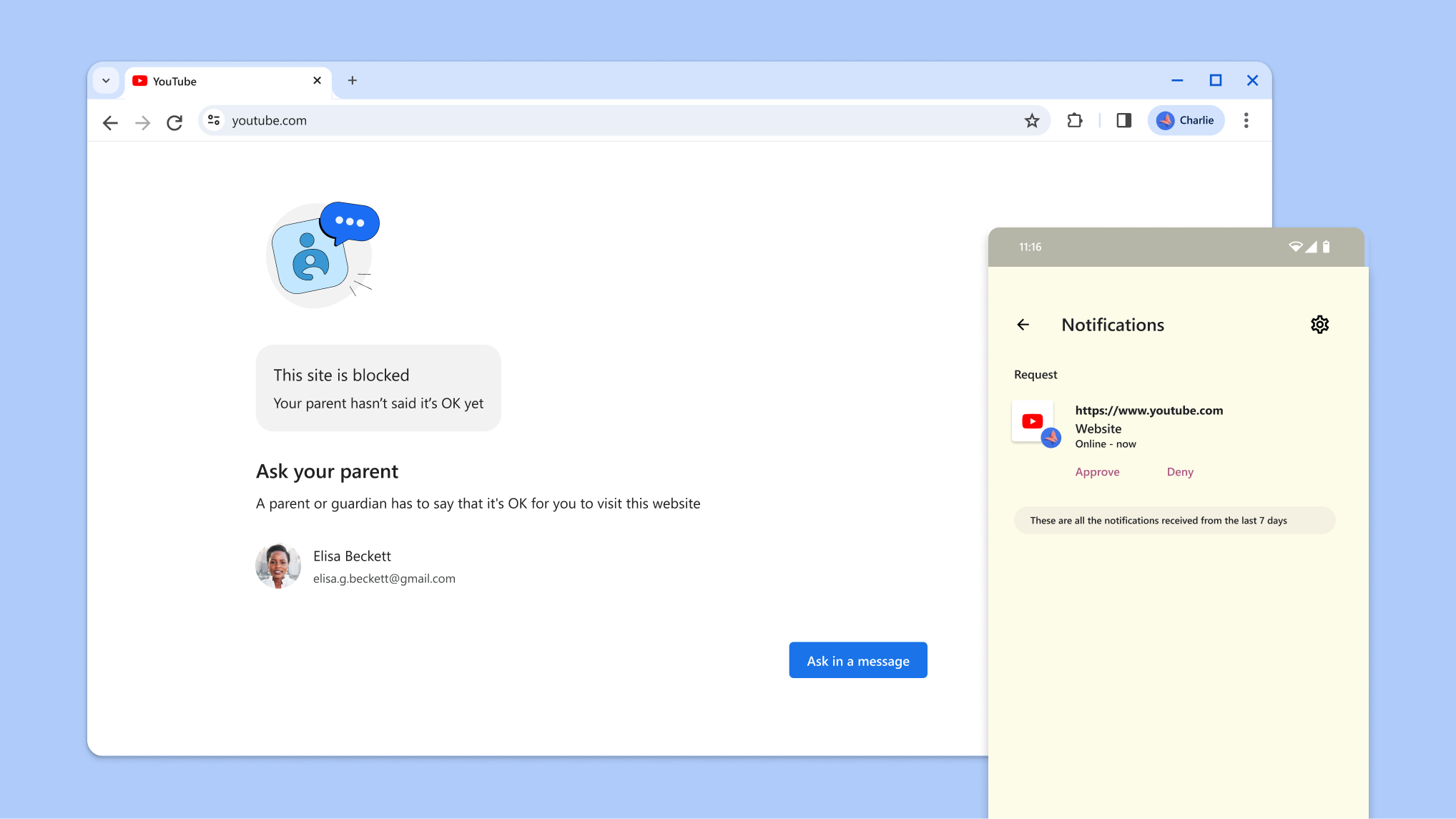
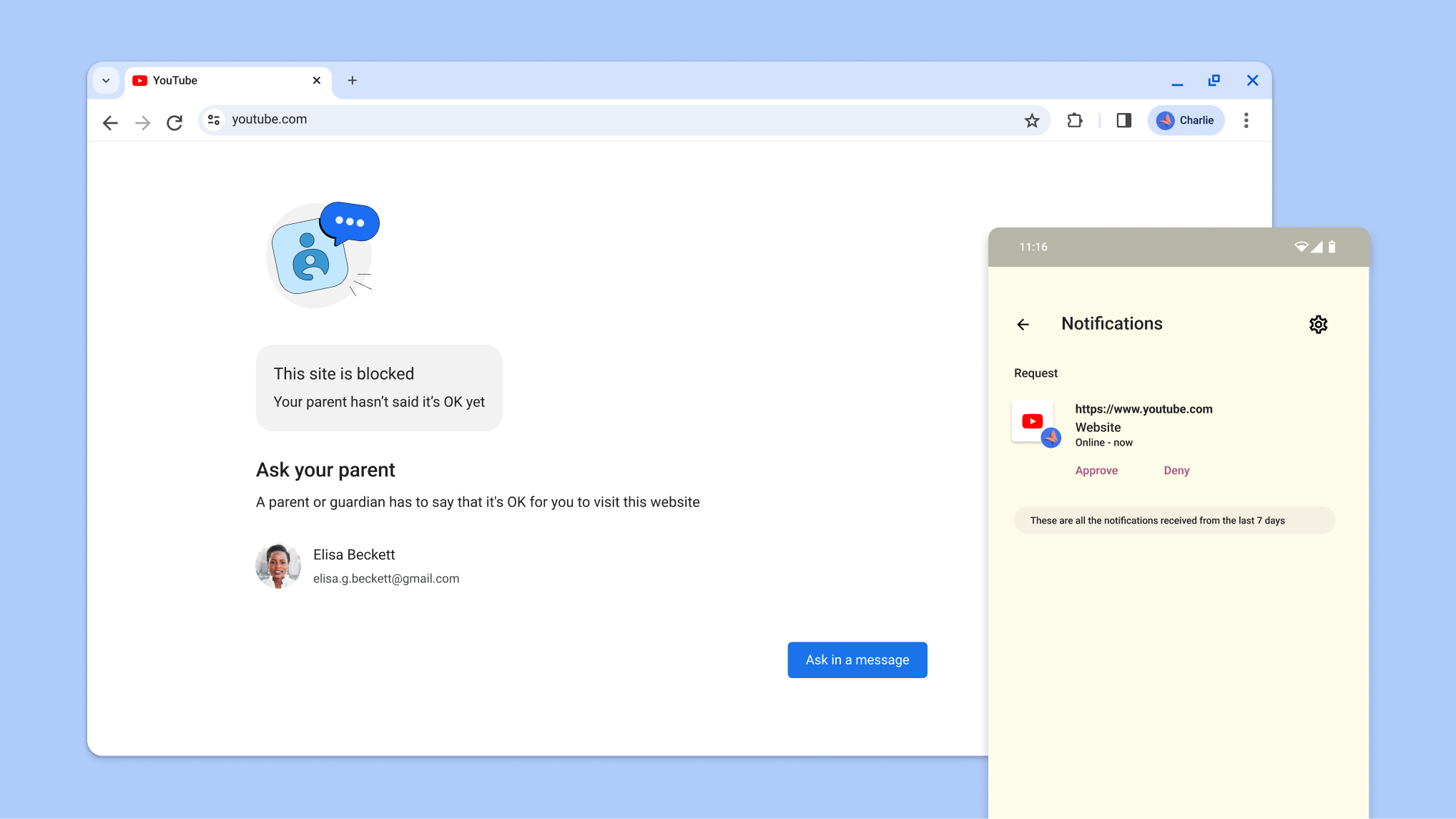
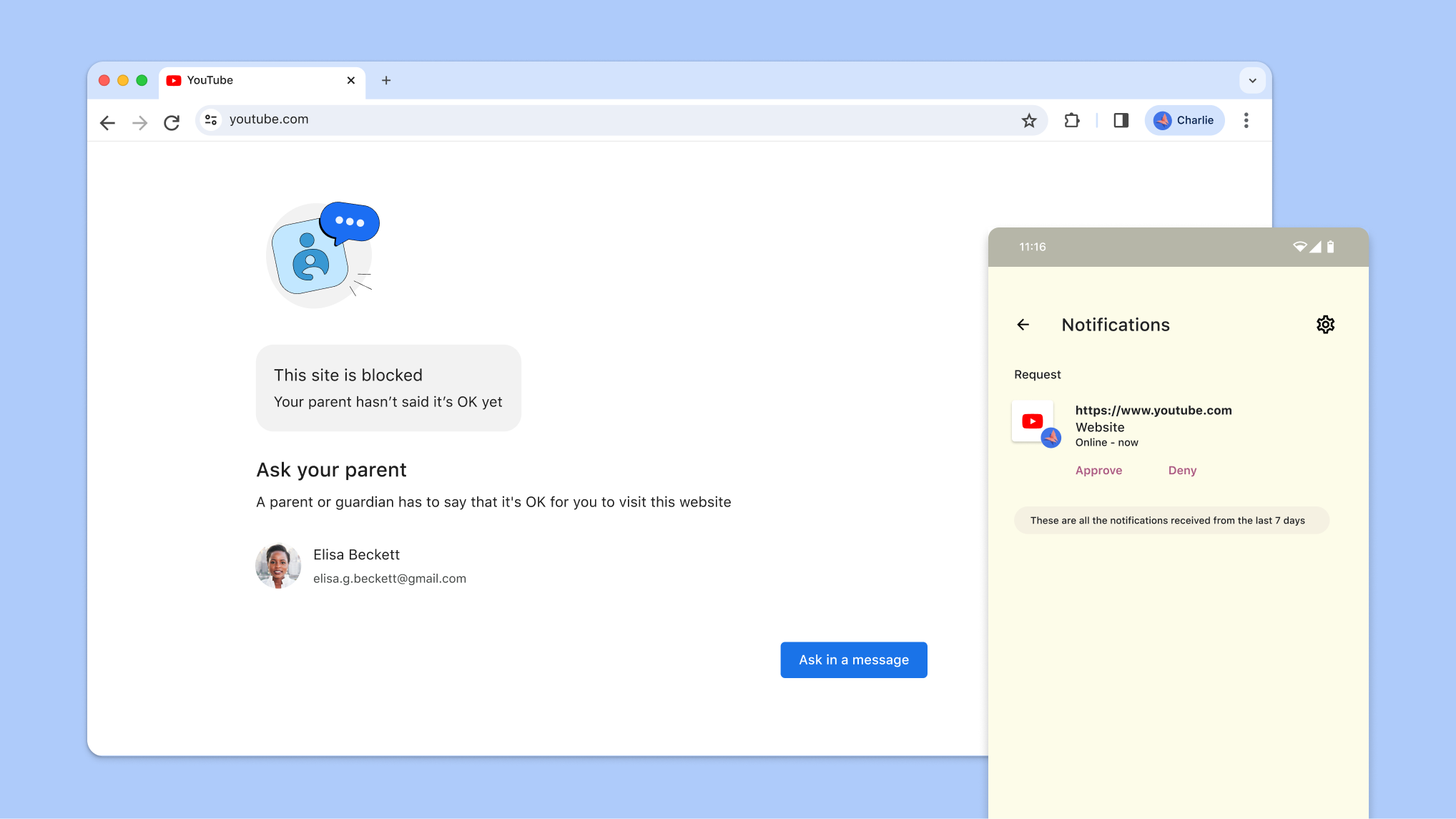
    Website blocked by parental controls and a notification by Family Link to approve entry
    Website blocked by parental controls and a notification by Family Link to approve entry
    Website blocked by parental controls and a notification by Family Link to approve entry

    Family Link On Chrome

    Block sites for your child

personalization

Get your tab groups on the go
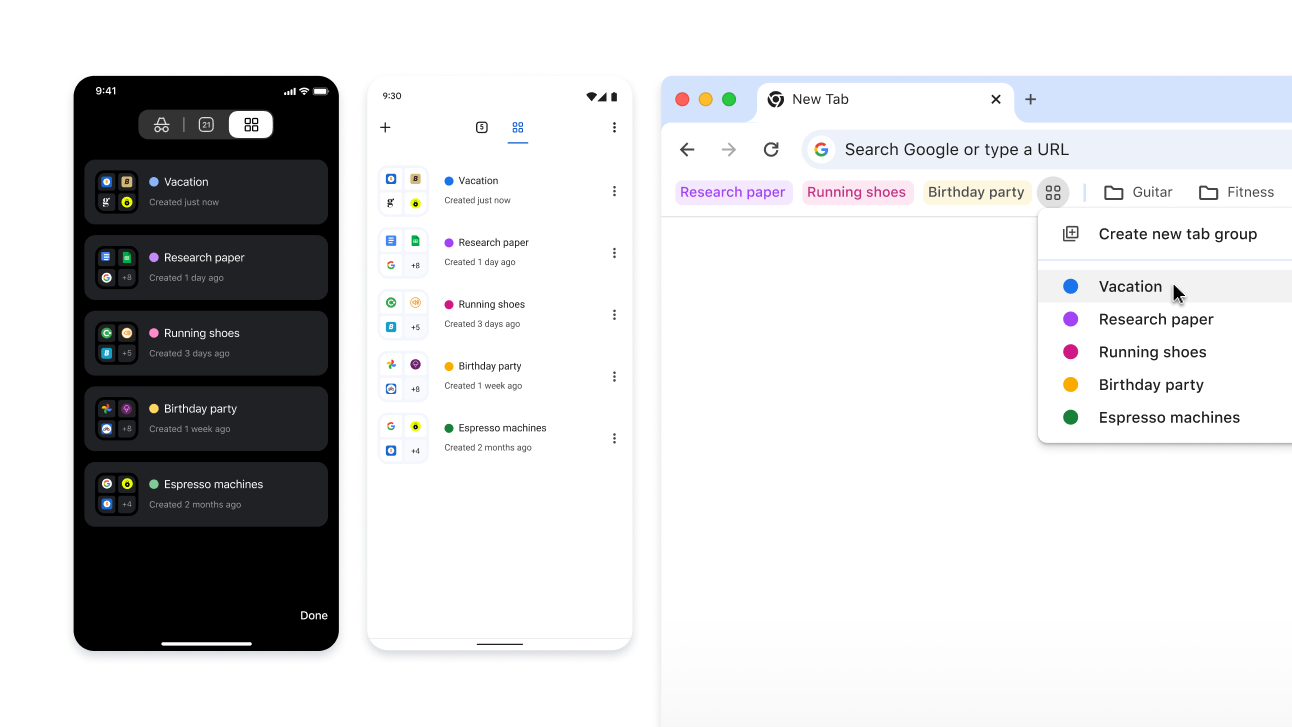
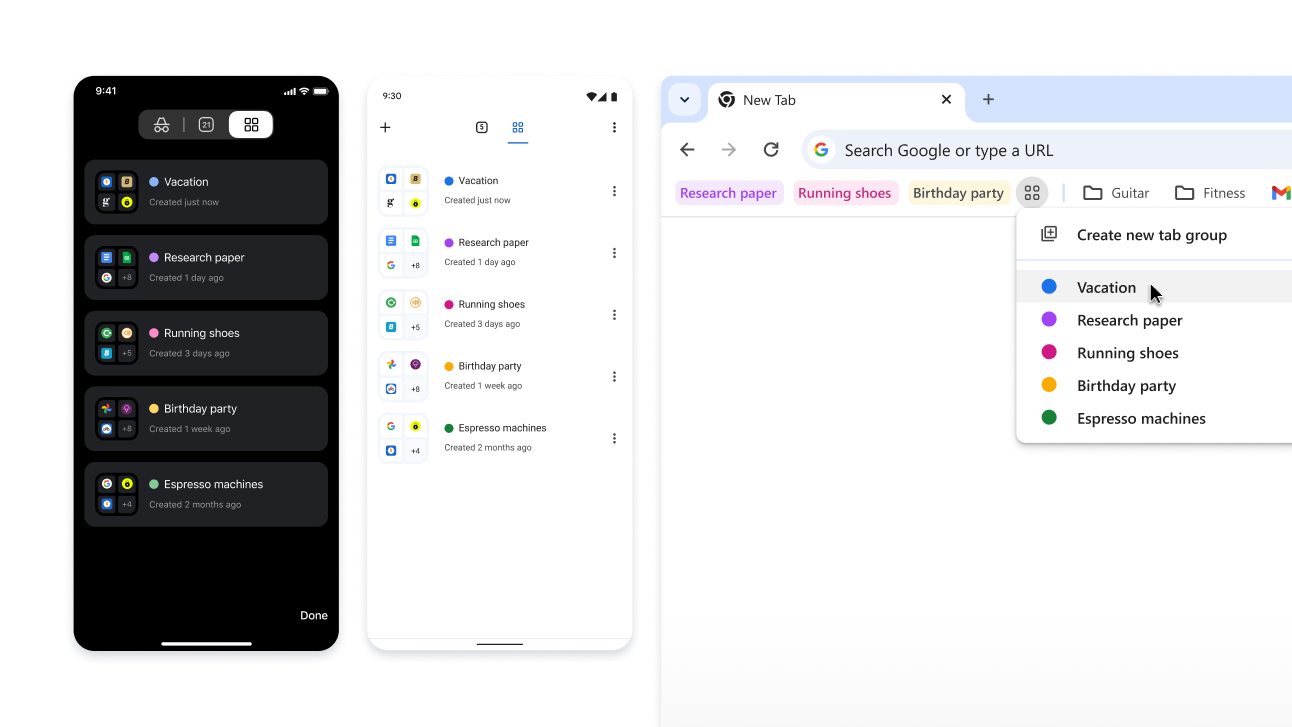
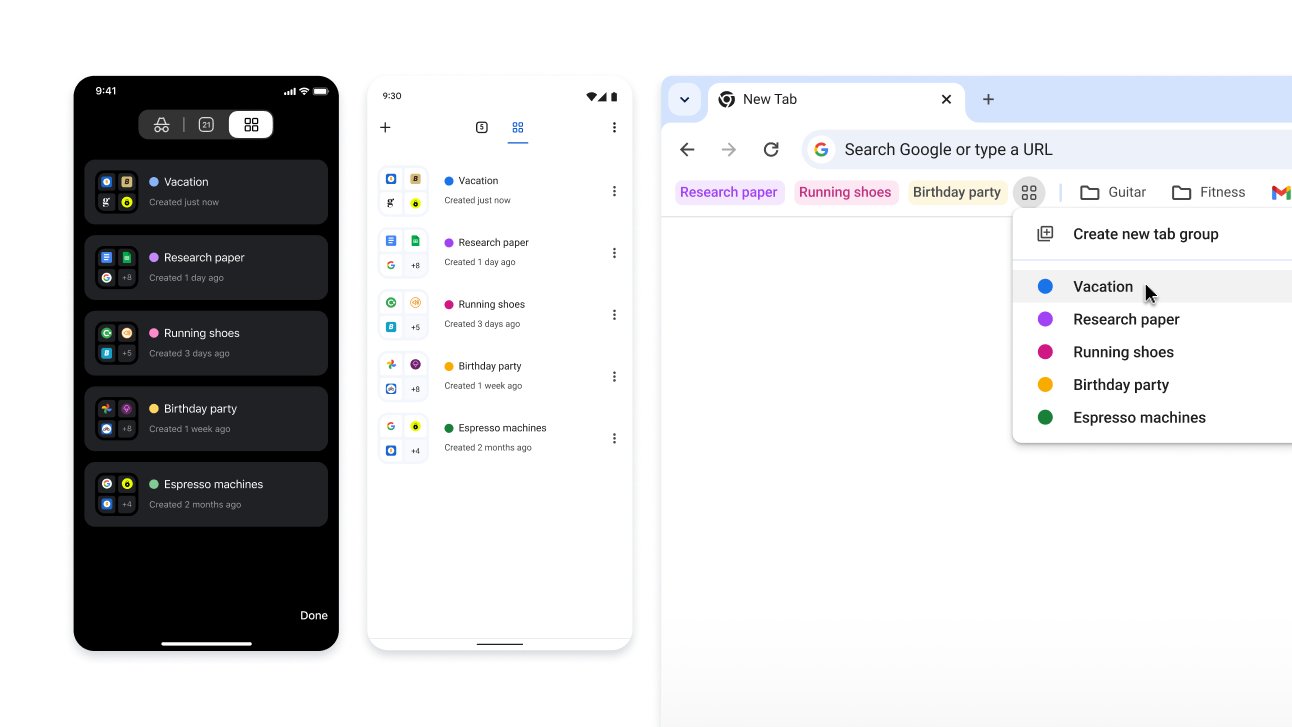
When you create a tab group, it’s automatically saved to your Google Account – so you can open those tabs and keep going on any signed-in device.

To start seeing your tab groups across devices:

  1. Sign in and create a tab group. The tab group will automatically save to your account.
  2. To open your group on a different device:
    1. Mobile: Go to your open tabs and click the tab group section .

    2. Desktop: Click the tab group icon in your bookmarks bar (if open) or the Chrome menu.

Tab groups across iOS, Android and desktop devices

productivity

Interact with scanned PDFs
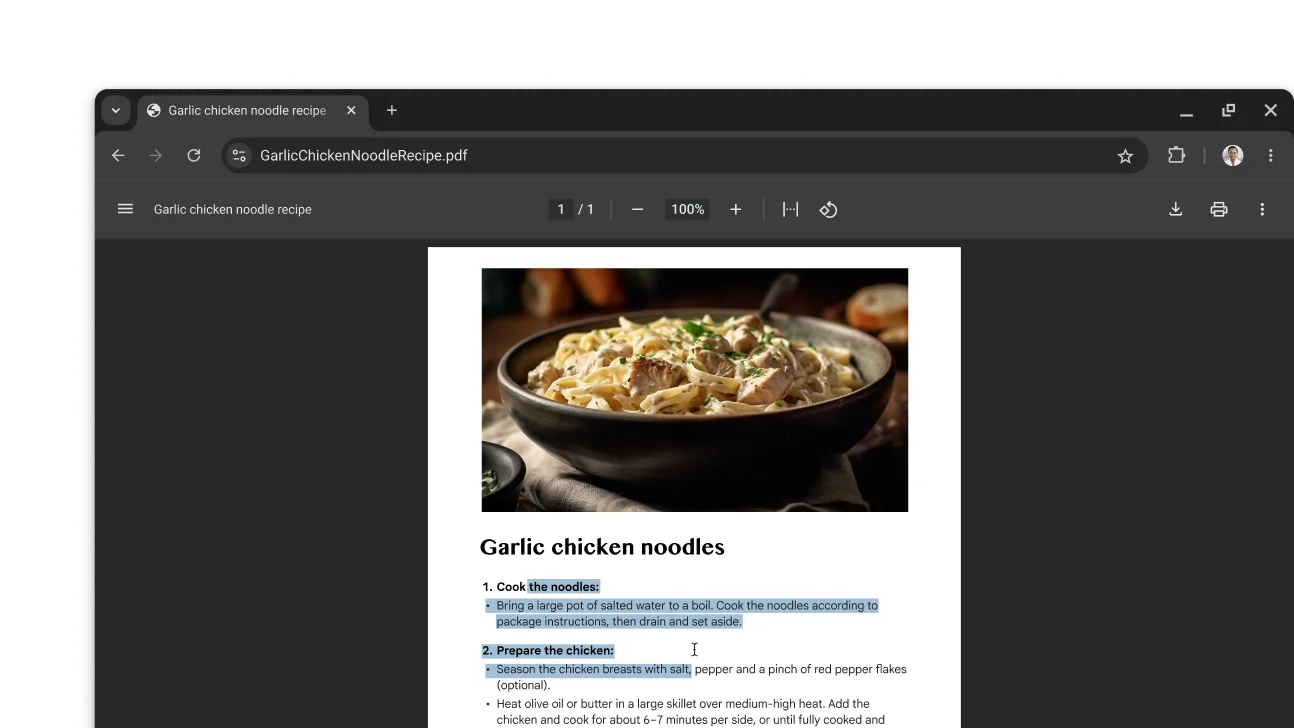
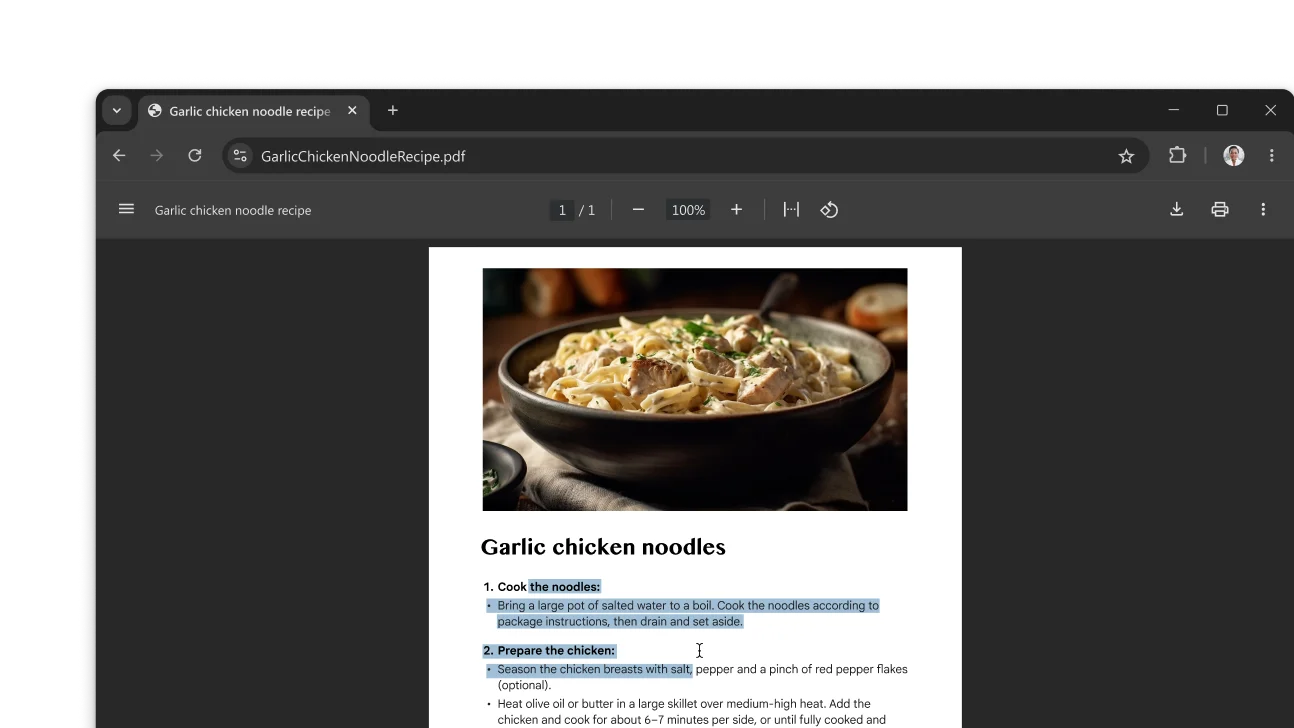
Now you can search, select, or copy text from scanned PDFs in Chrome.

All you have to do is open a PDF from Chrome. It will automatically open as an interactive file in Chrome's PDF viewer.

A PDF featuring a recipe is open in a Chrome browser window. The user has selected text within the PDF.

Google Lens On Mobile

Search what you see on mobile
Draw, highlight, or tap to select anything you want to search. You’ll get results without even leaving your tab.

An image of searching by drawing on Chrome. Next to the image is a QR code that can be used to download Chrome.

Share Passwords

Share passwords on your phone
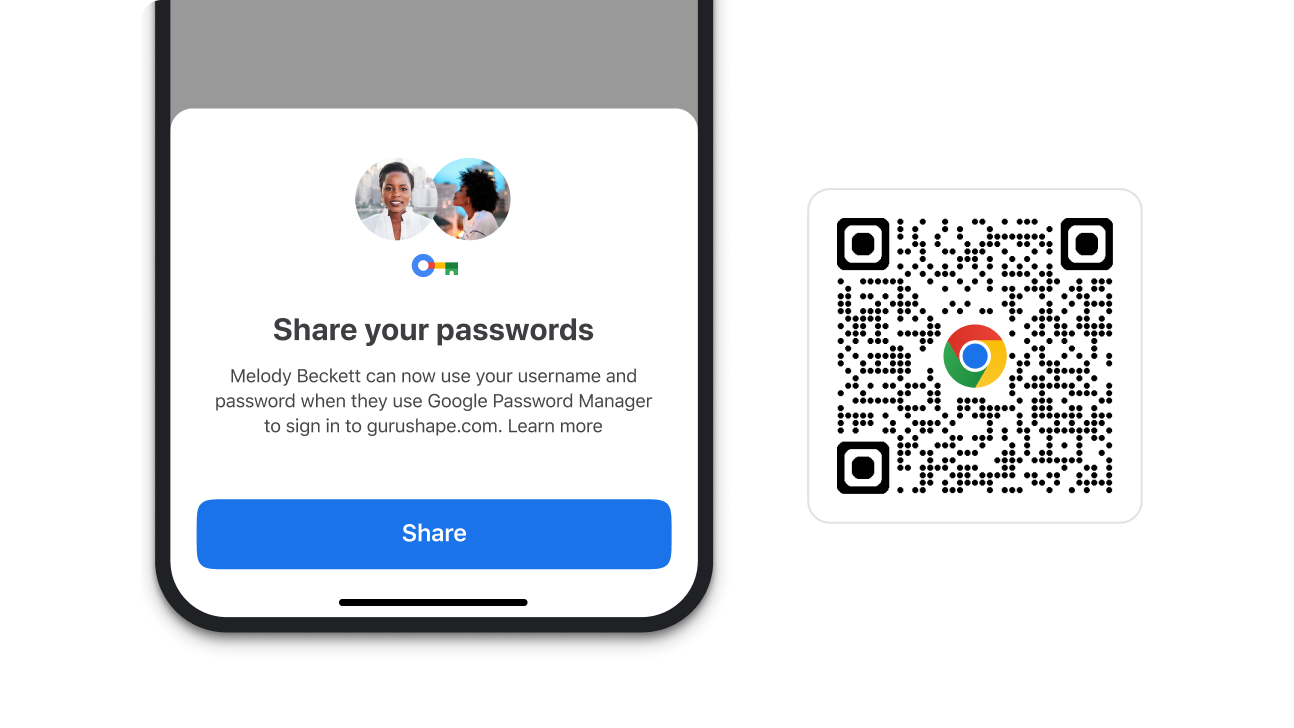
Easily and securely share your saved passwords with anyone in your family group.

  • iOS
    1. Open the Chrome menu > and tap Password Manager .
    2. Select the password you want to share, then tap Share .
    3. Select family members to share your passwords with.
  • Android
    1. Open the Chrome menu > and tap Settings >, then Password Manager.
    2. Under Search passwords, select the password you want to share, then tap Share .
    3. Select family members to share your passwords with.
A module in Chrome that allows you to share passwords. Next to the module, is a QR code that can be used to download Chrome.

Coming soon

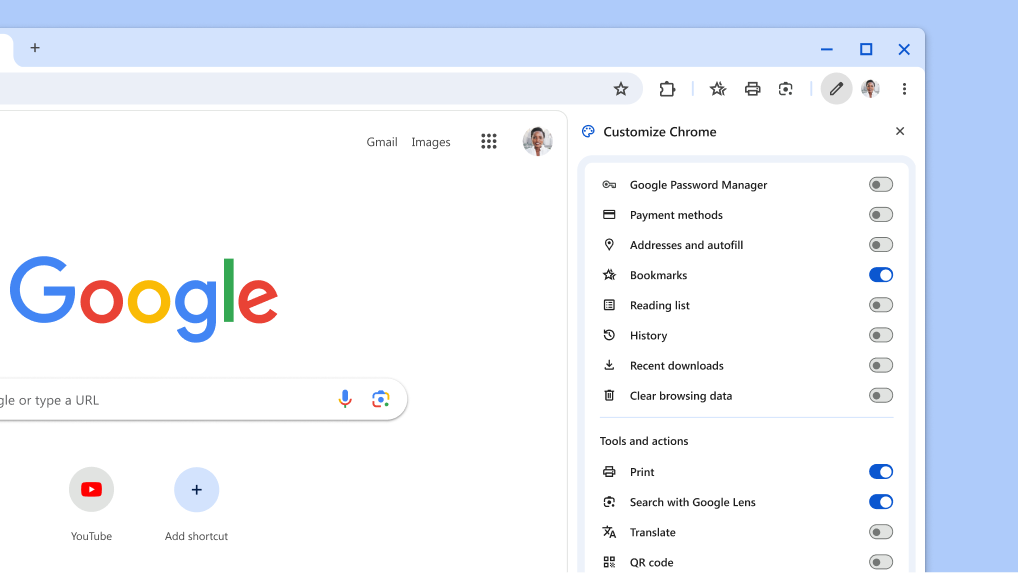
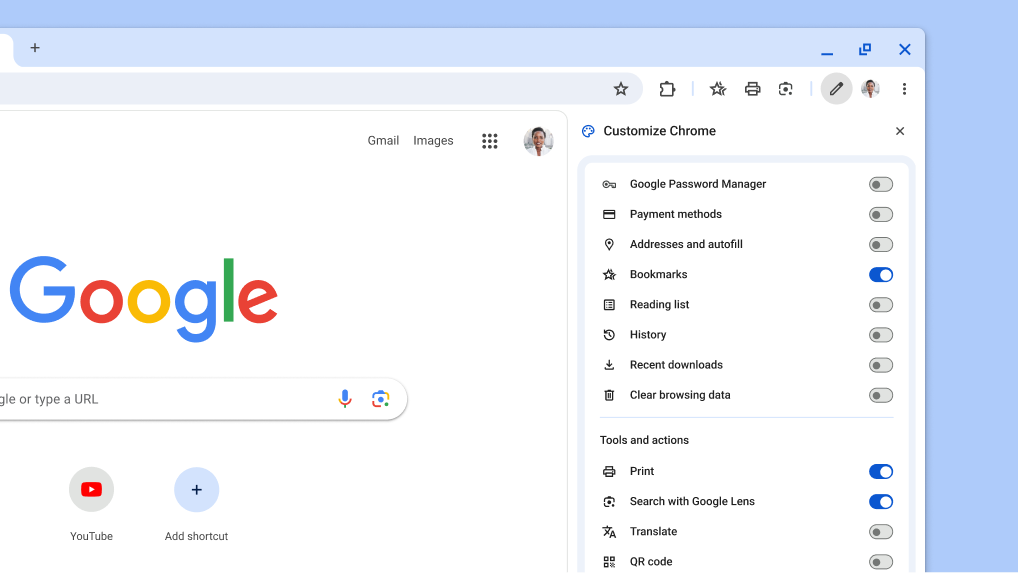
Pin tools for easy access

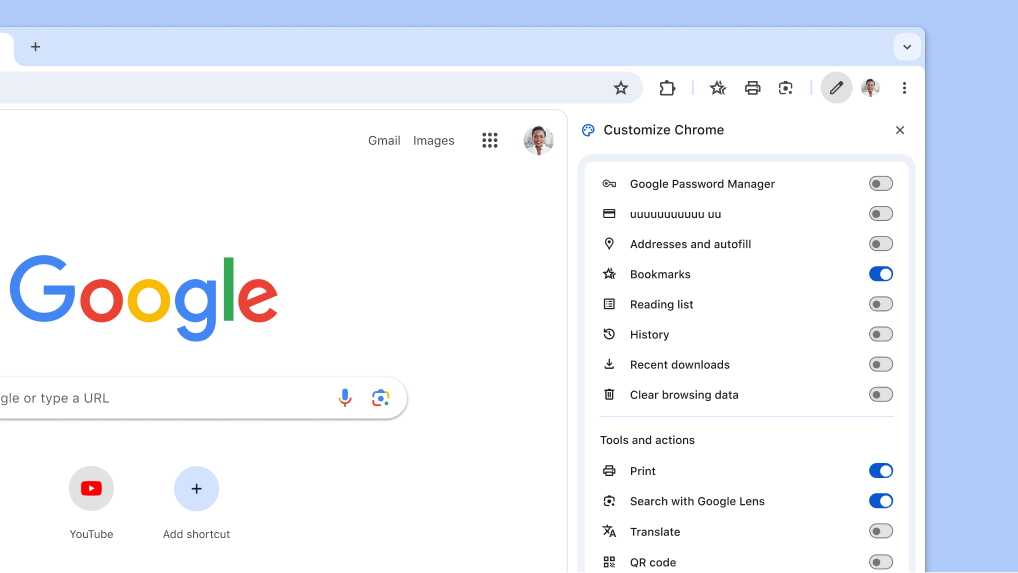
Work even faster by pinning your favorite tools – like bookmarks and reading mode – to the toolbar.

In the Chrome menu, select More Tools and then Customize Chrome . Then, just choose the toolbar buttons you want to pin.

A new way to customize your toolbar

Coming soon

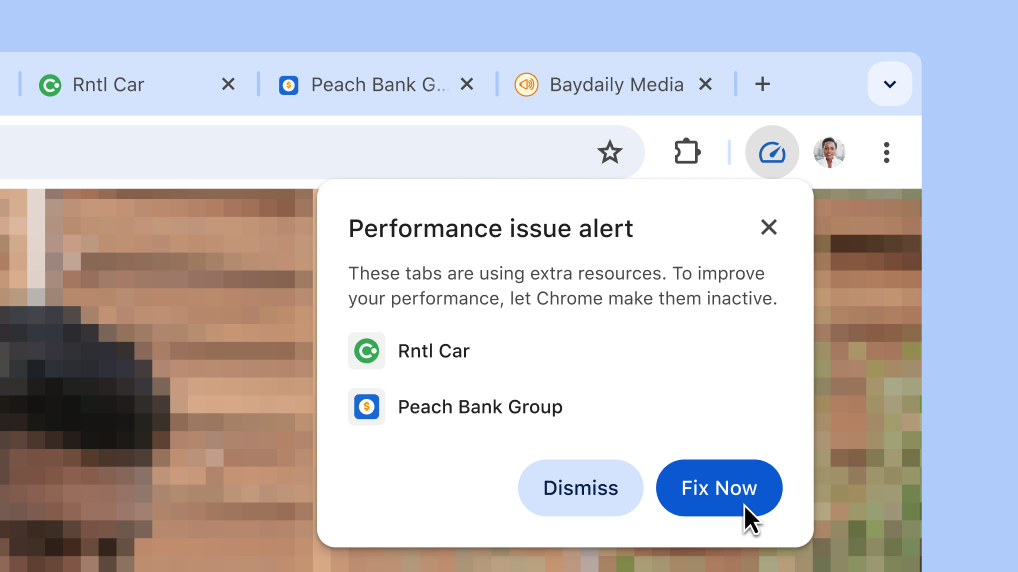
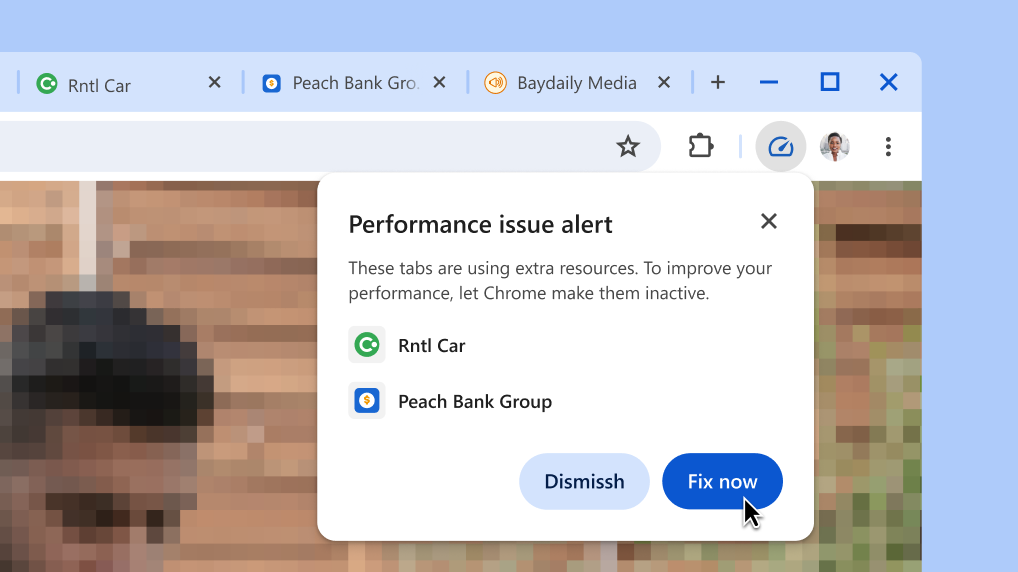
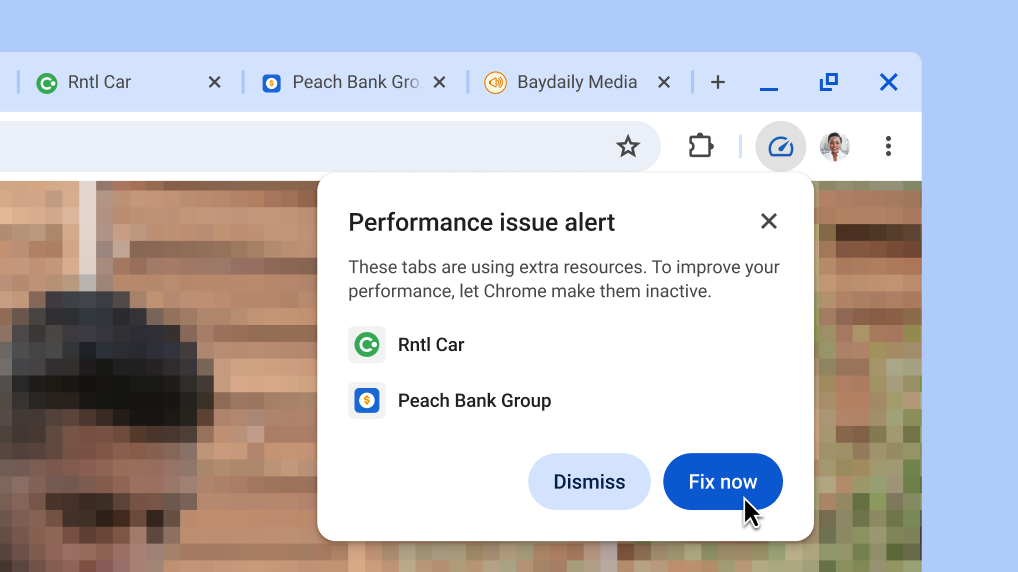
Improve your browser performance with one click
Chrome automatically suggests that tabs using extra resources become inactive, so the tab you're currently using gets a performance boost.

  1. When Chrome finds tabs using extra resources, you’ll get a performance alert.
  2. Click Fix now to make the listed tabs inactive.
Improve your browser performance with one click
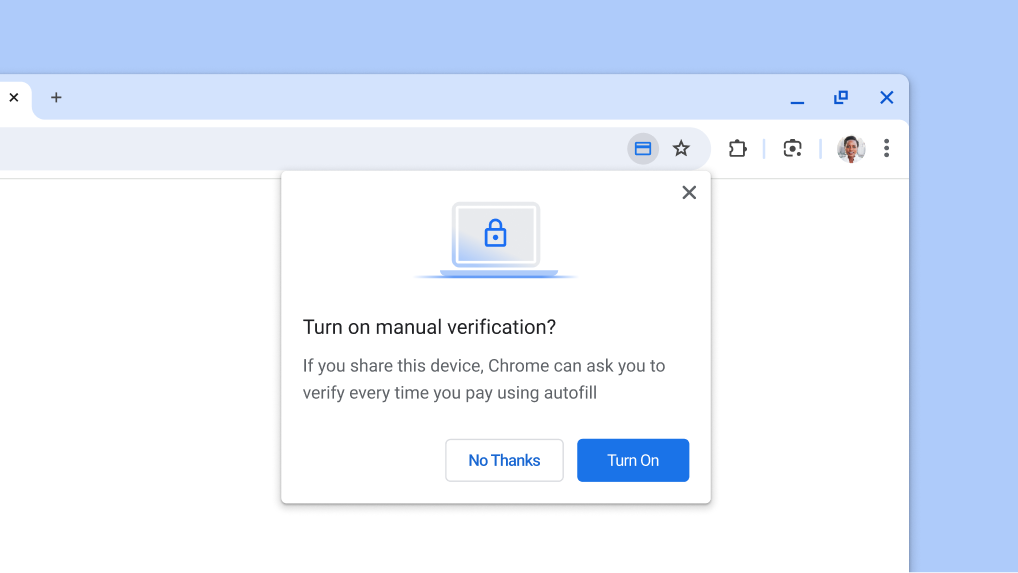

Autofill Payments

Pay even faster
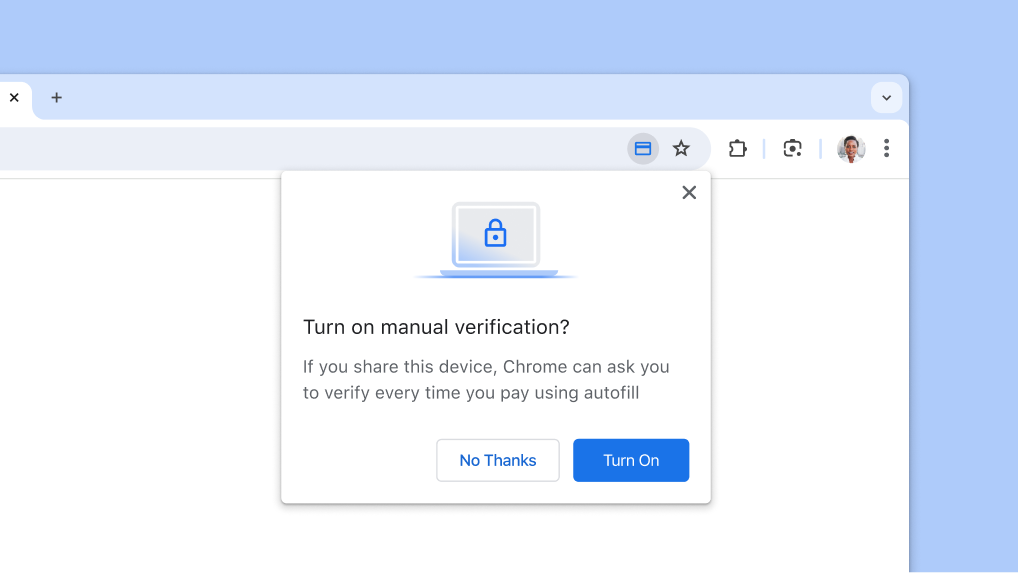
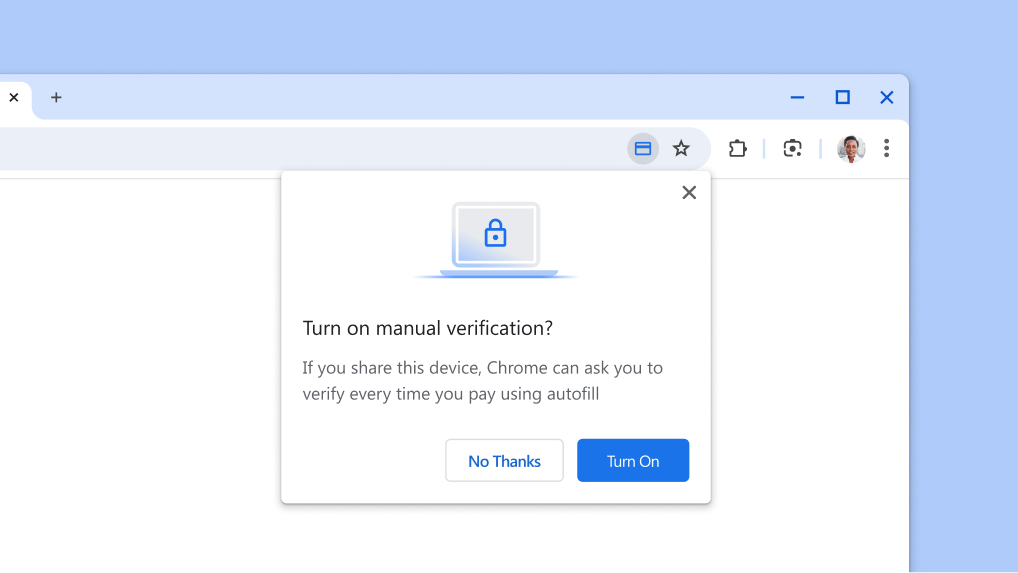
Fill in your full payment card details the same way that you unlock your device – with a fingerprint, face scan or screen lock PIN – instead of entering your card security code.

  1. Go to > Autofill and passwords > Payment methods.
  2. Select Manually verify every time you pay using autofill to use your biometrics the next time that you checkout.
Turn on manual verification for payments autofill.

Google Lens

Search anything on your screen
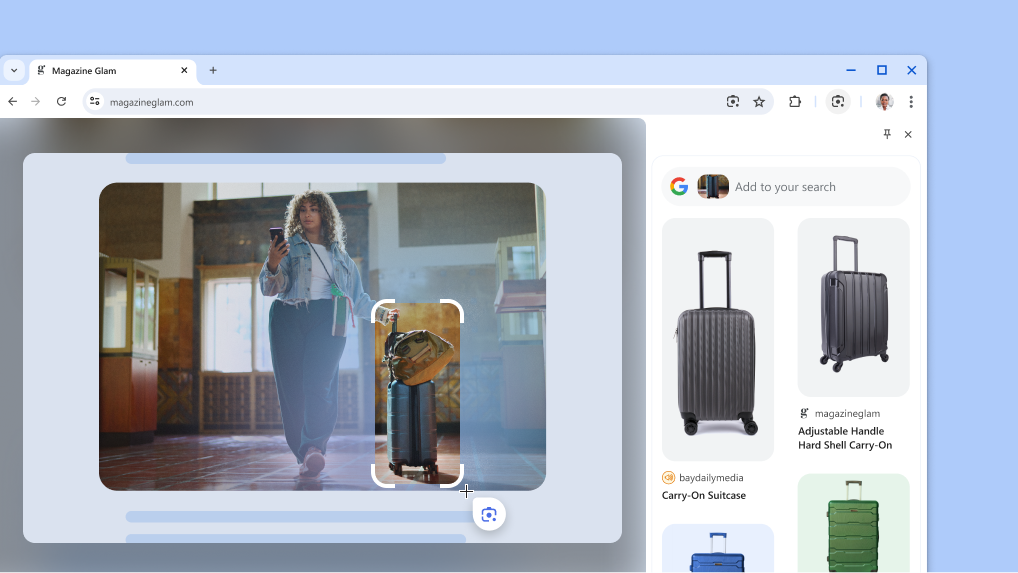
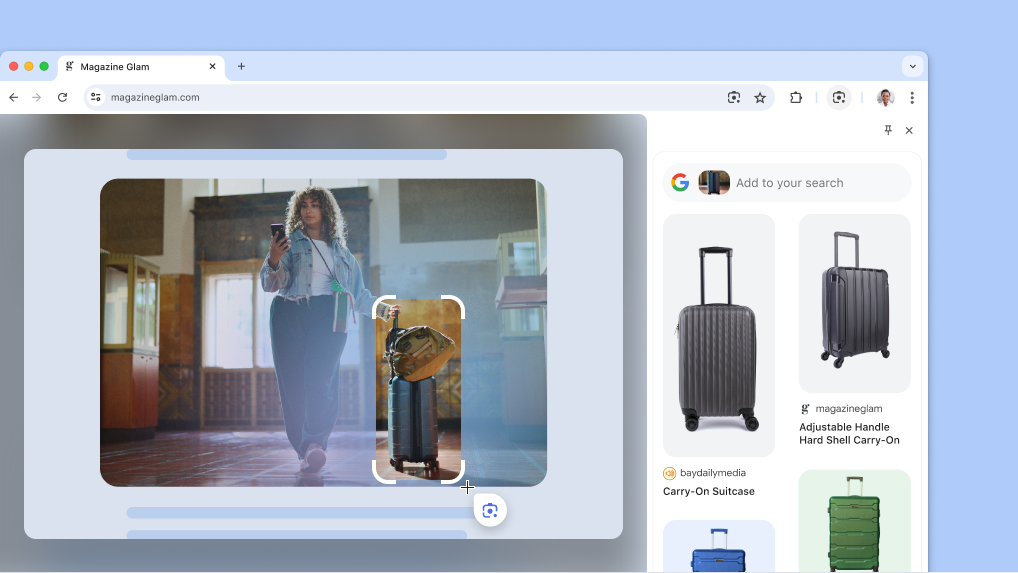
Google Lens in Chrome makes it easy to search anything you see on your screen. Search within a video you're watching, a slide in a livestream, or an image on a webpage. Google Lens will give you answers right there, in your tab, and you can continue browsing with the new information you’ve found.

  1. Open the Chrome menu.
  2. Select Search with Google Lens .
  3. Select anything on the page by clicking and dragging anywhere on the page.
  4. Refine the answers by typing in the search box in the side panel.
  5. For quicker access, click Pin in the side panel to add the icon to your toolbar.
Google Lens on a product page.

Gemini Shortcut

Chat Gemini from the omnibox
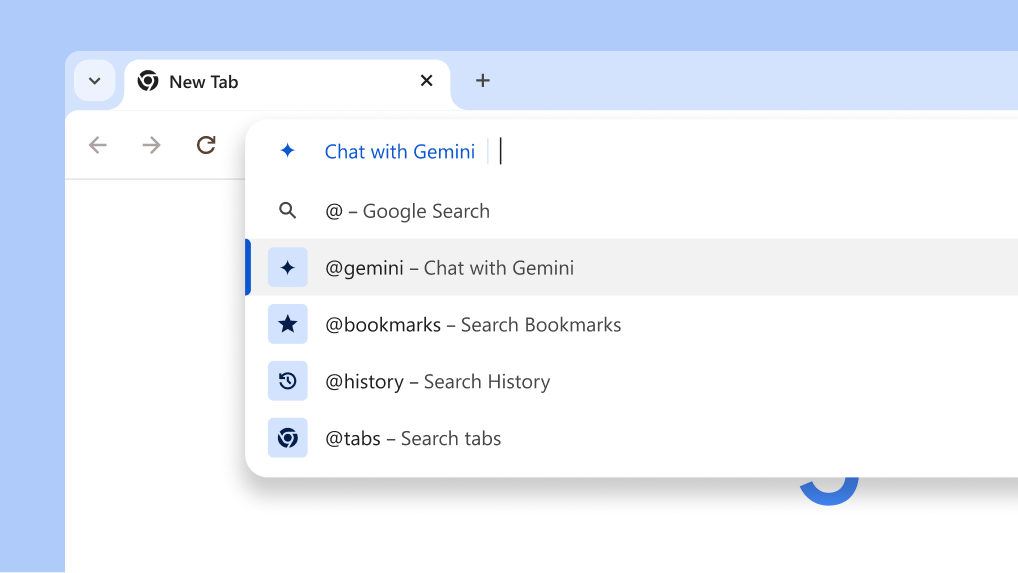
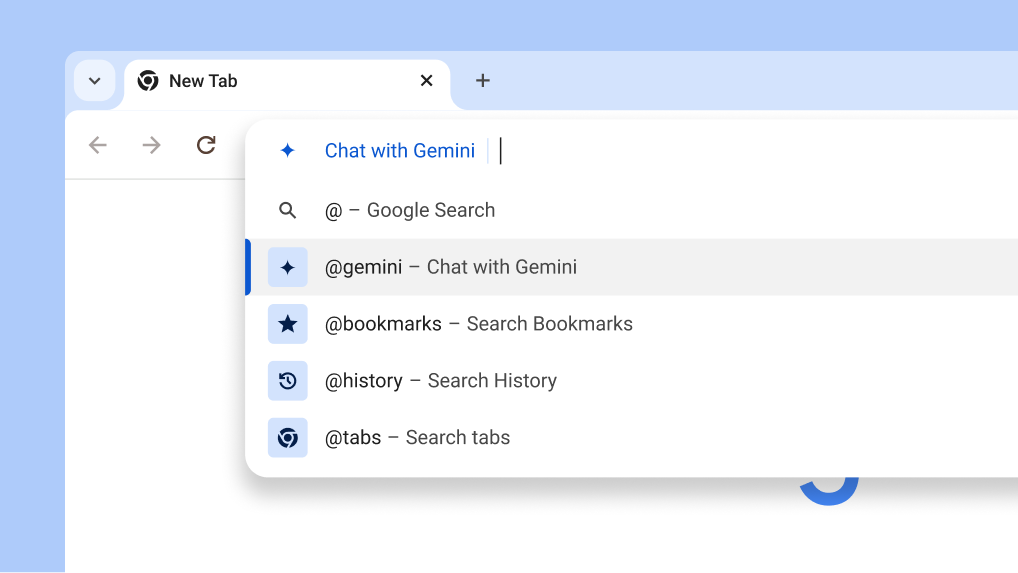
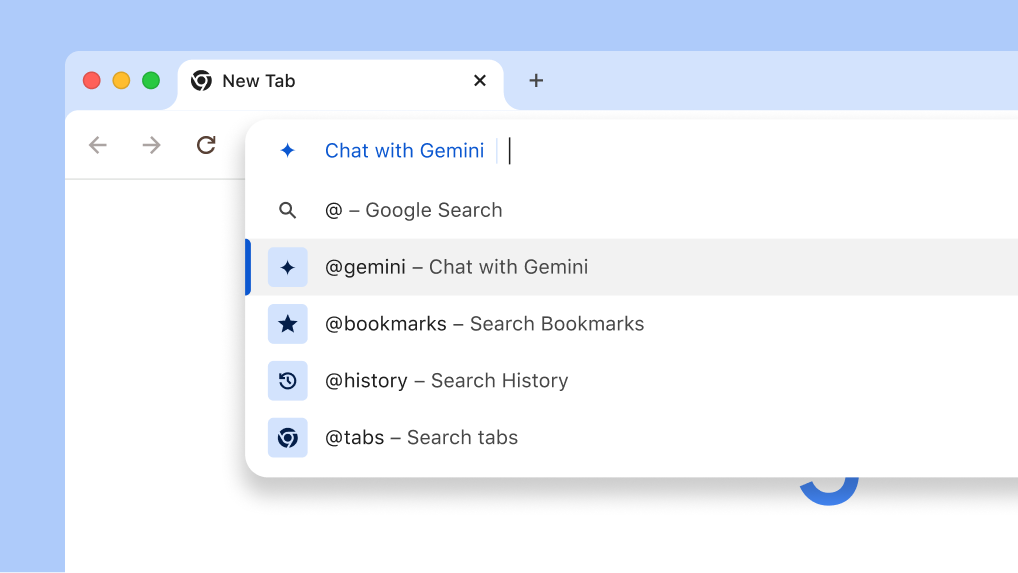
You can quickly get help from Gemini with creative and complex tasks, like planning a trip or learning more about a new topic with this new shortcut in Chrome.

  1. Type “@” in the address bar and select Chat with Gemini.
  2. Write your prompt.
  3. Get your response on gemini.google.com.
Chat with Gemini from the address bar

customize

Pin your favorite features to the toolbar
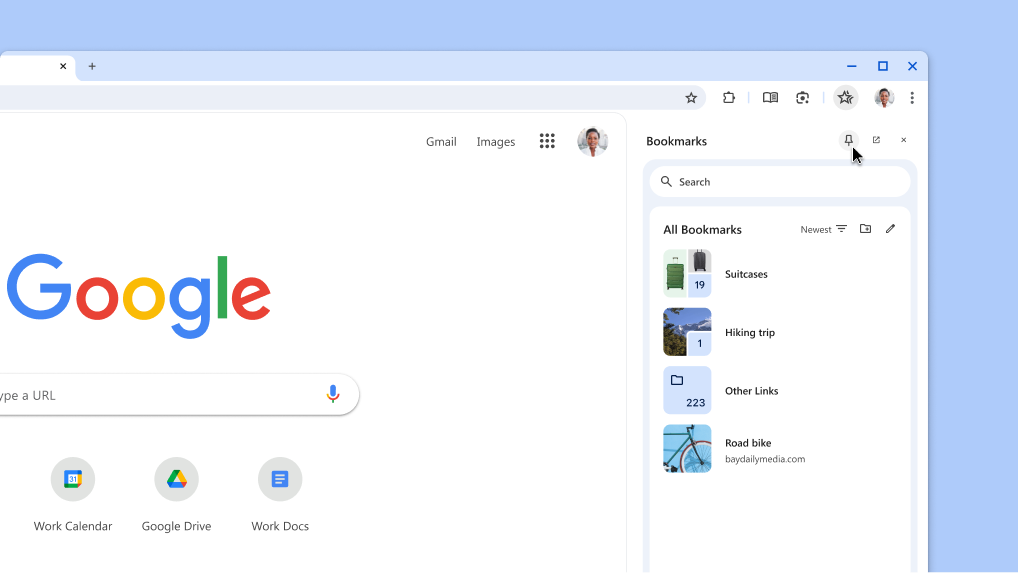
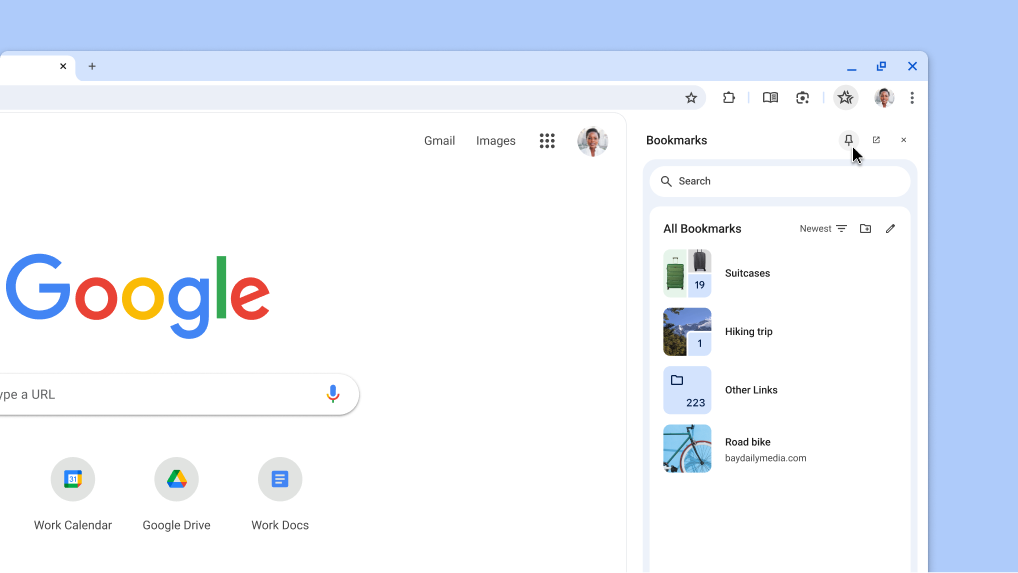
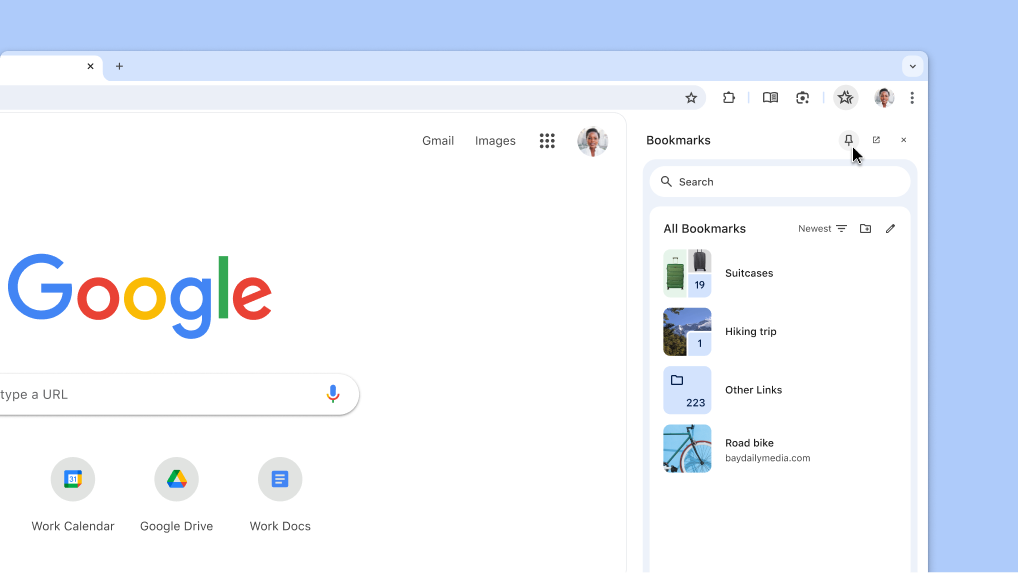
You can pin your favorite side-panel features like Bookmarks and Reading Mode to the toolbar.

  1. From the Chrome menu , open the feature you want to pin:
    • Choose Bookmarks and Lists > Show all Bookmarks .
    • Or choose More Tools > Reading Mode .
  2. Your selected feature will open in the side panel.
  3. At the top of the side panel, click Pin .

Tip: To unpin something, right-click the button in the toolbar and select Unpin .

Pinning a Chrome side panel to the toolbar

Search Suggestions

Get custom search suggestions
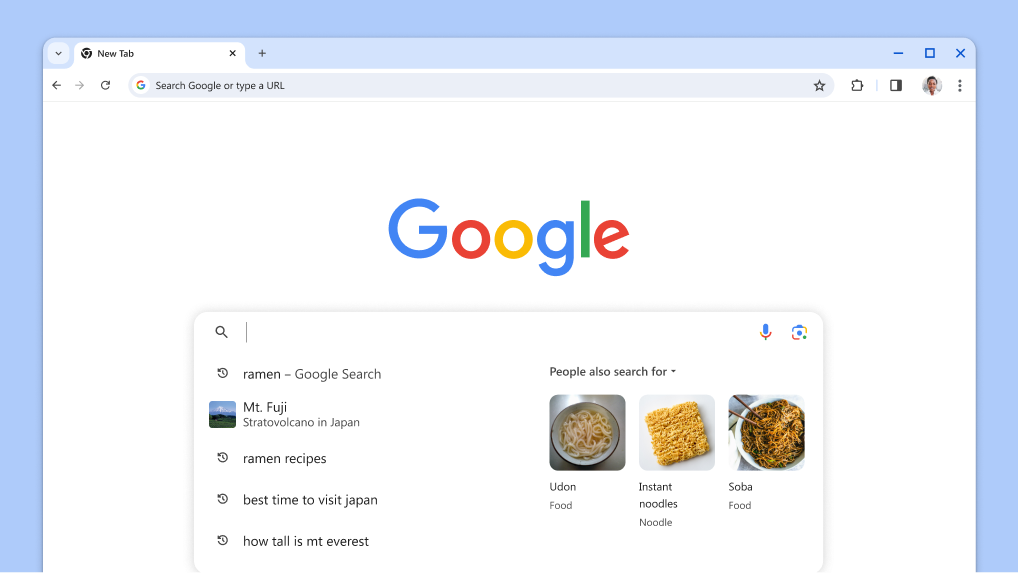
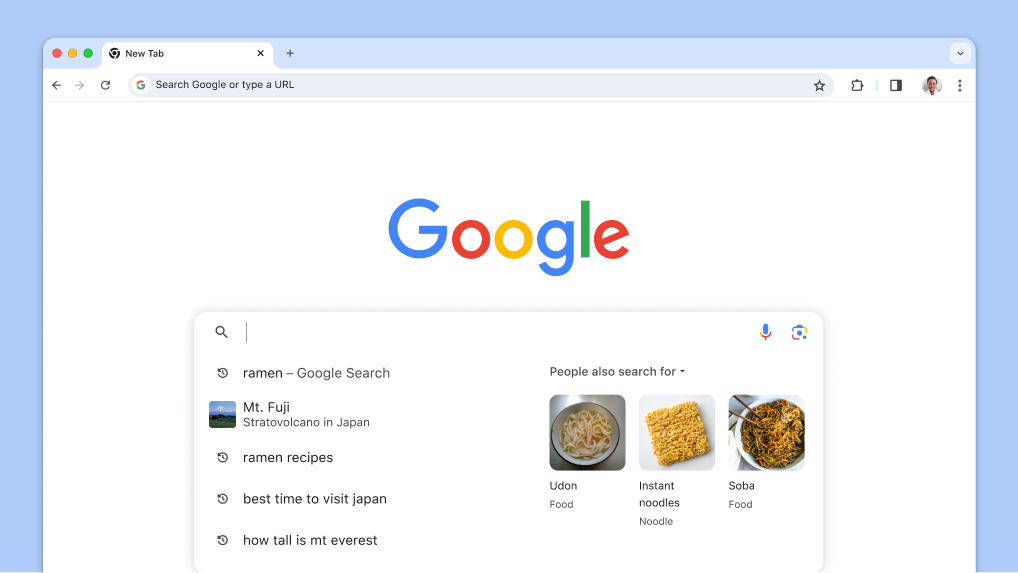
Get suggestions in the search box related to your previous searches based on similar things others are looking for.

  1. Open a New tab .
  2. Click the search box to see suggestions related to your previous searches.
  3. Click on the topics to view search results.
The cursor is shown in the search box with automatically loaded past searches and related topics.

Safety Check

Review safety recommendations
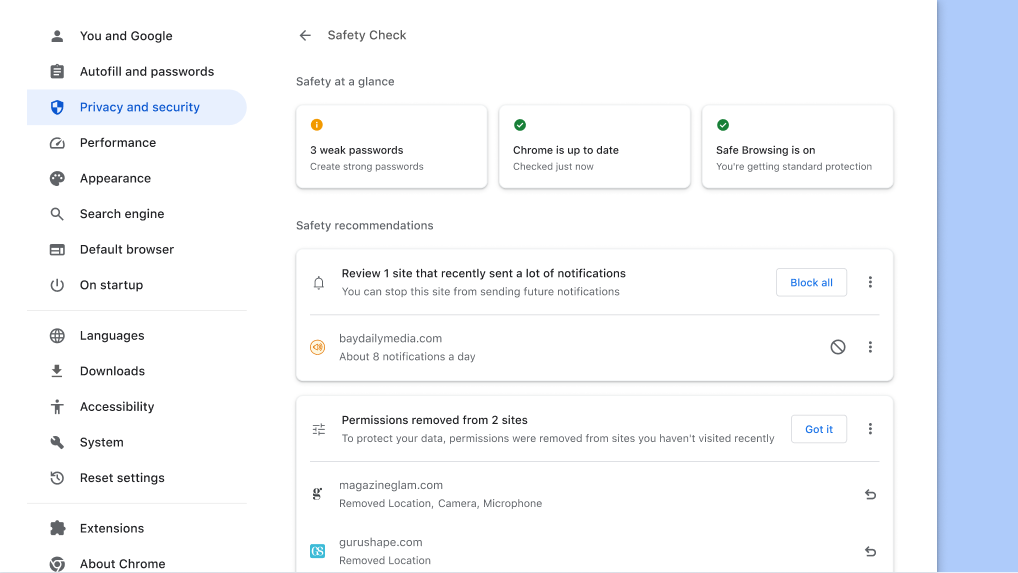
Chrome will let you know when there are safety recommendations for you. You can also visit at any time to see info about your privacy and security settings and to learn how Chrome keeps you safe.

  1. At the top right, open Chrome Menu and select Settings .
  2. Click Privacy and Security.
  3. Select Go to Safety Check.

Safety Check

Review safety recommendations
Chrome will let you know when there are safety recommendations for you. You can also visit at any time to see info about your privacy and security settings and to learn how Chrome keeps you safe.

  1. At the top right, open Chrome Menu and select Settings .
  2. Click Privacy and Security.
  3. Select Go to Safety Check.
Chrome Safety Check runs in the background to check for privacy and security issues, then displays your safety status and any relevant recommendations to improve your safety.

Save Tab Groups

Hide tabs until you need them
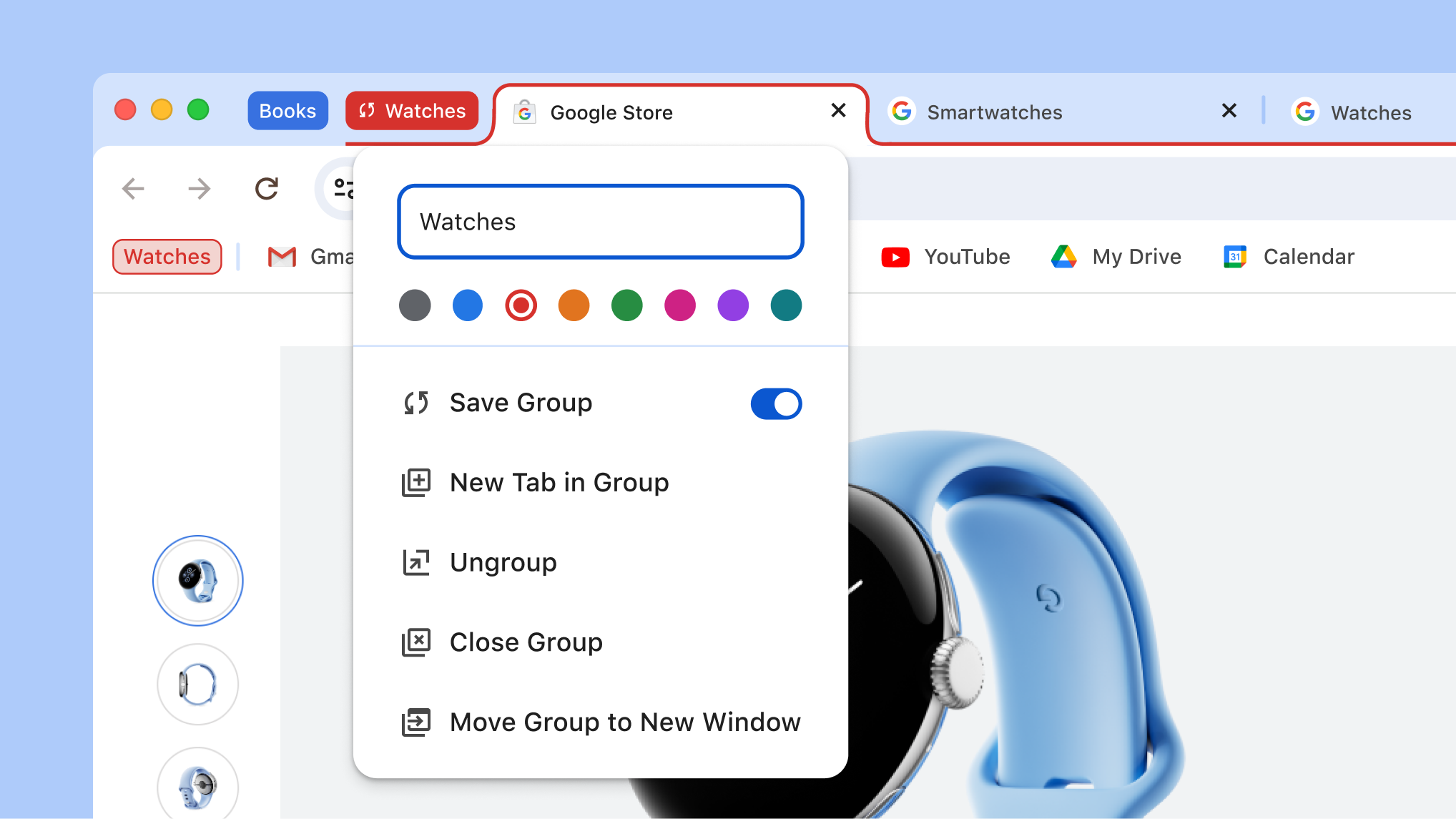
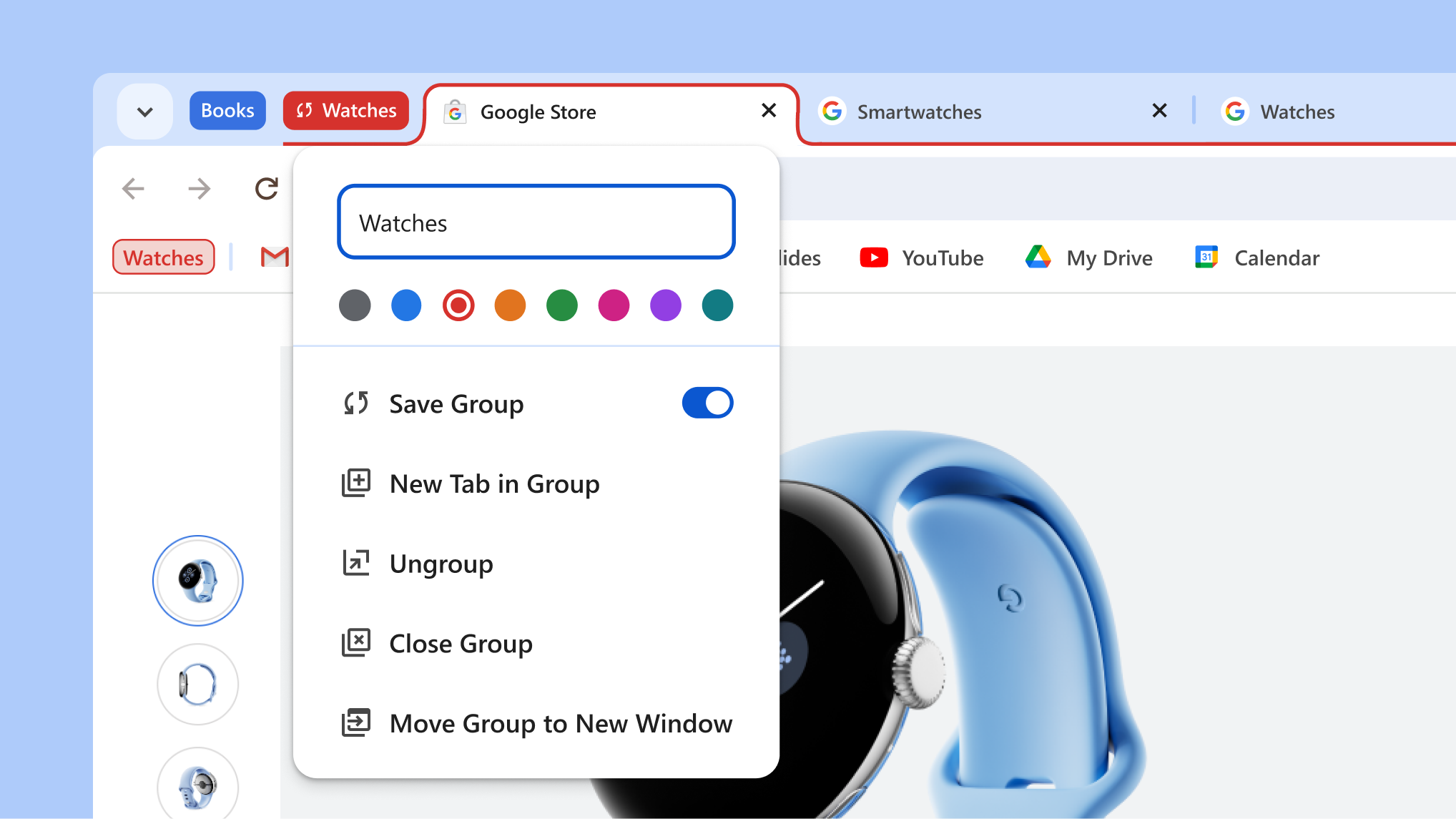
You can save and open tab groups across desktop devices when you need them. This makes it easier to clean up your tab strip and focus on the thing you need to get done, right now.

  1. Right-click a Tab and select Add tab to group.
  2. Turn on Save group and your group will appear in the bookmarks bar.
  3. To remove the group from your tab strip but keep it for later, right-click the group header and select Hide.
  4. On a different desktop device, sign in and see your groups in the bookmark bar.

Tip: In the tab strip, click the group header to collapse the group.

Tab group menu open showing the new save and hide group options

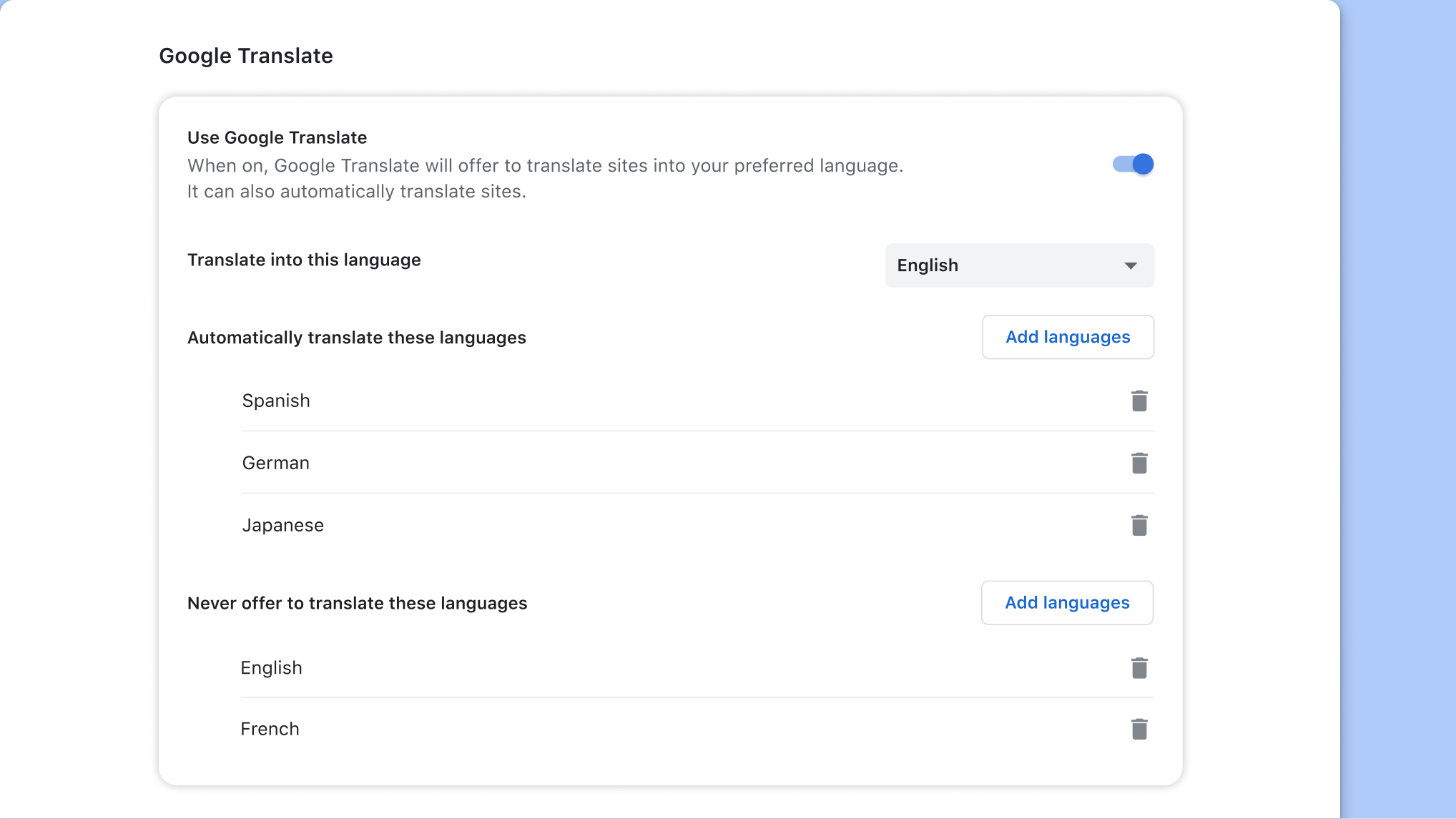
Google Translate

Translate pages automatically
Get web pages automatically translated into your preferred language or languages.

  1. Open Chrome menu and select Settings.
  2. Select Languages in the side menu.
  3. Turn on Use Google Translate and customize your options.
Google Translate setting page in Chrome